How the hardware shapes the show
The problem
The same show file runs on a full-size console, on onPC on a laptop, and on everything in between. How you play that show doesn't carry over so easily. A layout built for 30 faders is unusable with a mouse. A busking concept that relies on hitting 12 buttons at once needs physical buttons. And if you have only a laptop, you'll want a different structure (fewer, bigger building blocks, more on screen) than with a desk full of faders.
Practice
This page is working practice. The executor counts and remote input details are from the manual; the advice on how to use them is not.
What each setup gives you
| Setup | Physical executors | Screens | Notes |
|---|---|---|---|
| grandMA2 full-size | 30 fader + 30 button executors, 20 X-keys | 4 + externals | everything in reach |
| grandMA2 light / ultra-light | 15 fader + 15 button executors, 20 / 10 X-keys | 3 / 2 + externals | same software, smaller surface |
| onPC alone | none: on-screen executors, mouse, keyboard | your monitors | programs anything, outputs nothing without unlock hardware |
| onPC + command wing | command keys, encoders, grand master, a 100 mm fader | your monitors | the programming surface; unlocks parameters |
| onPC + fader wing | 15 fader + 15 button executors (+ 45 executor buttons) | your monitors | the playback surface; unlocks parameters |
| onPC + MIDI controller | whatever the controller has, via remote input | your monitors | cheap, flexible, limited feedback |
(Parameter counts per device: see Systems and networking.)
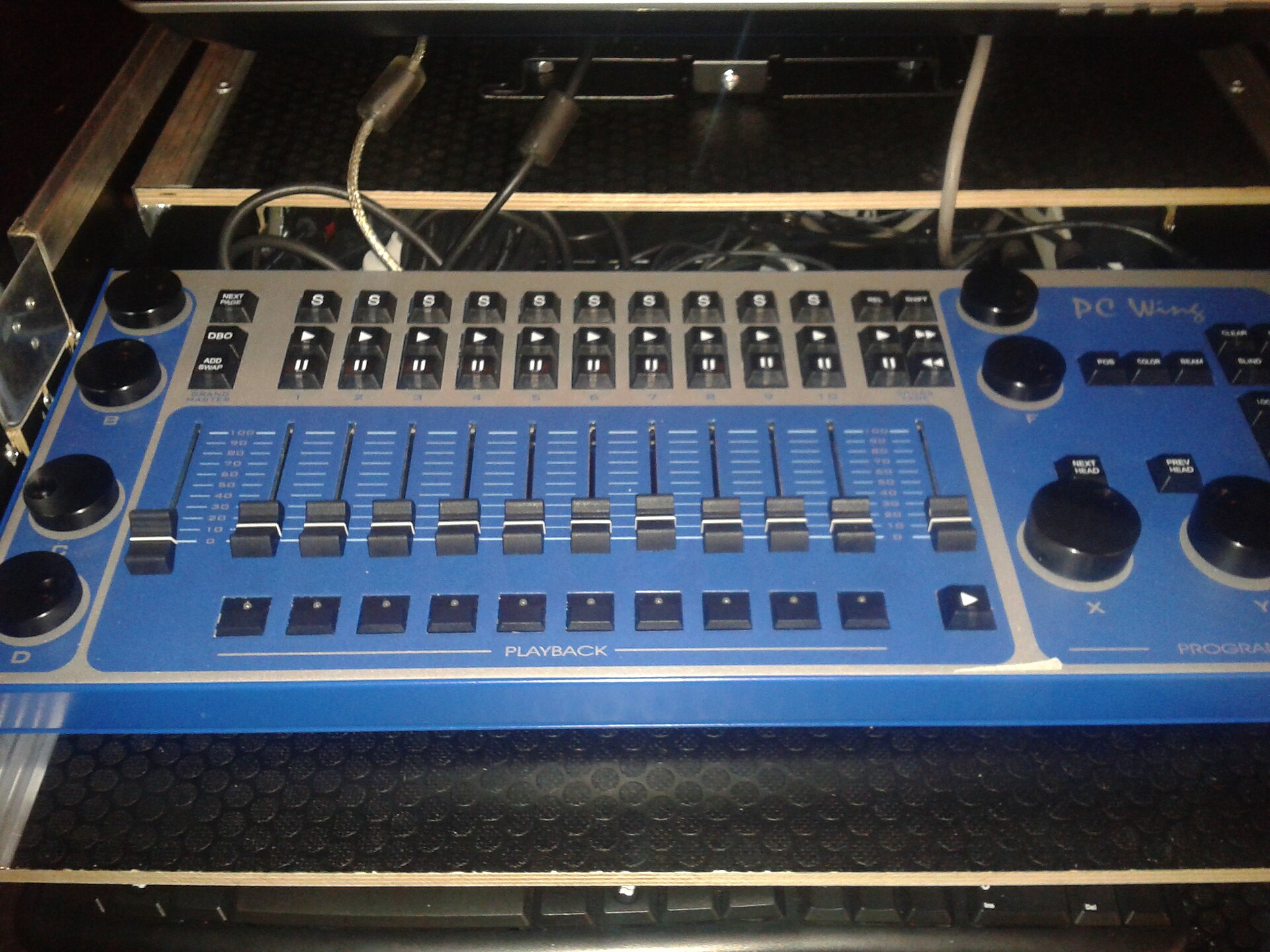

Design for the hands you have
- Many physical faders (console, fader wing)
- Spread the show out. One layer per fader (atmosphere per fixture type, effect sizes, speed, submasters), hits on buttons, few page changes. Fixed controls in the same place on every page. See What goes on an executor.
- A few physical controls
- Prioritise. Give physical faders to the things you ride (atmosphere master, speed, the main intensity layers) and put everything you trigger on screen buttons, X-keys or keyboard shortcuts.
- Mouse and screen only (onPC alone)
- Build bigger building blocks: complete colour looks rather than colour per fixture type, fewer and larger executors, more in sequences, less in live combinations. Use on-screen executor windows (Action Buttons and Playback Big, with Direct Action so one tap fires the button), a layout with groups and presets as touch buttons, and views for each task. Keyboard shortcuts help a lot.
Interpretation
The fewer physical controls you have, the more decisions you should make before the show. A full-size console invites building looks live from layers. A laptop rewards preparing finished looks and switching between them, like the colour looks in Colour concepts for busking.
MIDI controllers
grandMA2 can be driven by external controllers through remote input (Setup → Show → Remote Input Setup), with tabs for MIDI, analog (contact closure) and DMX input. Each input row triggers either an executor (button 1–3 or fader, on a fixed page or the current page), a command (anything you can type, including macros), or a hardkey.
The important limitation: the MIDI remote input works with MIDI notes. A note triggers a button; for faders, the note's velocity sets the fader position. Many cheap controllers send control change (CC) messages for their faders and knobs, so they need either a note mode or a translation step in between.
Practice
Common approaches for controller setups:
- controllers that can be configured to send notes with velocity for faders (many can, via their editor software)
- a MIDI translation tool on the computer that turns CC into notes
- map buttons to commands rather than fixed executors when you want them to work on every page (e.g.
Go Executor 1.1, or a macro)
To verify in onPC: check 5
For more complex setups there's MIDI Show Control (MSC) for cue triggering, telnet (any command from another program), and the web remote.
Macros and Lua: making your own controls
Macros are lists of commands in a pool, runnable from the pool, keys, executors, X-keys or view buttons. Because the console is driven by its command line, "if something can be done using the command line then a macro can do it". They can ask for input, use variables, wait between lines and run conditionally (see Macros).
Lua plugins go one step further: scripts that interact with the software directly. The manual calls them "for the very advanced users". In practice they're used for things macros can't do well, such as generating many objects at once, custom logic and complex controller integration.
Practice
Start with macros. Most "I wish there was a button for …" problems are a two-line macro on an X-key or a remote input. Reach for Lua only when macros get unwieldy.
When it matters, and when not
- Programming: hardware matters less. onPC with a mouse can program anything, and a command wing mostly makes it faster.
- Busking: hardware decides the concept. Design the show around the physical controls you'll have at the gig, not the ones you program on.
- Mixed setups (program at home on onPC, play on a console or wing): keep the executor layout identical, so the show file works on both.
Related
- What goes on an executor
- Systems and networking: unlock hardware and output
- Screens, views and layouts: working on screen
- The command line: the basis of macros
- Macros: timing, toggles, @ helpers, variables
- Reference: Remote input, What are macros, Edit plugins, Executors on the screens
Sources
- What are executors: executor and X-key counts per console
- MA onPC fader wing, MA onPC command wing
- Parameter expansion
- Remote controlling the system, Remote input: types, MIDI notes, velocity for faders
- Executors on the screens: Action Buttons, Playback Big, Direct Action
- What are macros: macros and plugins
- What is Lua, Edit plugins