Cues, sequences and tracking
The problem
A build-up routine on one executor, one cue per phrase: in cue 1 the back washes come in at 30 in deep blue, the only light in the room. Cues 2 to 6 add the bars, then the beams, then take the bars away again, and none of them touch the washes. At the venue the washes turn out too bright in the dark: they should sit at 20.
There are two ways a console can store those cues, and each causes its own headache:
- Every cue stores the complete stage. Then the wash level is written in all six cues, and dimming it means editing six cues (or forgetting one, and the washes jump up in cue 4, right before the drop).
- Every cue stores only what changes. Then you edit cue 1 once and the change flows through. But now changing cue 1 can affect cue 5 without you noticing.
grandMA2 uses the second way, tracking, by default, and gives you tools to control where the changes stop.
The idea: a cue is a list of changes
A cue stores attribute values. A sequence is an ordered list of cues. With tracking on, a cue only stores what changes in it. Everything else stays where an earlier cue put it:
Once a parameter is set to a level, it stays there until it is told to go somewhere else.
In the routine: cue 1 brings in the washes, cue 2 the bars, cue 3 the beams, cue 4 takes the bars out. In cue 4 the washes and the beams are still on, although cue 4 doesn't mention them. (The manual explains the same idea with props on a theatre stage.)
So there are two different things to think about for every cue:
- its content: what is stored in this cue
- its state: what the stage looks like when this cue is running, meaning the content plus everything tracked in from earlier cues
The tracking sheet shows both, with colours:
| Colour | Meaning |
|---|---|
| cyan | stored here, a new value that will track onwards |
| magenta | not stored here, tracked in from an earlier cue |
| white | stored here, but the same value that would have tracked anyway, a blocked value |
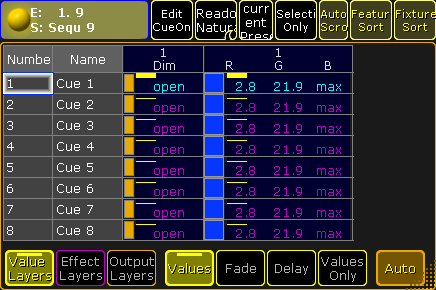
Controlling how far a change travels
Tracking is great until a change travels further than you meant. Most of the "extra" store options exist for exactly this:
- Blocked values (white)
- A value stored again even though it hadn't changed.
It acts as a wall: edit an earlier cue and the change stops at the block.
Useful to protect a look; annoying when redundant blocks stop changes you wanted to pass.
Unblockremoves redundant blocks from a sequence. - Cue Only
- Store a change in one cue without letting it track into the next. The console automatically stores the old value in the following cue, so everything after it stays as it was. Good for "this cue only": one red hit on the bars in the middle of the build-up.
- Break (cue mode)
- Marks a cue as a fresh start. Changes in earlier cues aren't allowed to leak past it. Useful when one sequence holds several routines in a row (intro, build-up A, build-up B): a Break on the first cue of each keeps something you added to the intro from turning up in build-up B.
- Release
- Stores "this sequence stops controlling the attribute". The attribute then goes back to whatever else controls it (another executor, or the default).
You can also turn tracking off for a sequence. Then every attribute that isn't stored in a cue is released instead of tracked. That's closer to the "every cue stores the complete stage" model, but without the stored "everything".
Go plays the content, not the state
There's one subtle consequence. When you press Go, grandMA2 by default plays the content of the next cue, the changes, not the whole tracked state. On a single sequence that makes no difference.
It does when another executor has changed the same fixtures in the meantime. Step by step:
- Sequence A, cue 1: fixture 5 turns blue. Cue 2 changes only the dimmer, so the blue tracks into it.
- You switch on executor B, which makes fixture 5 red. B is newer, so red wins (LTP, see Playback priority).
- You press Go on A. Cue 2 plays its content, the dimmer change. It stores no colour, so it has nothing to say about colour: fixture 5 stays red.
If a cue must re-establish its full look no matter what happened, give it the cue mode Assert. Then Go plays the cue's tracked state as well, and the blue comes back.
On a busking page this happens all the time: a cue list runs a build-up routine, and you press a colour button on top of it. The next Go on the cue list keeps your colour unless that cue stores colour itself or is set to Assert. Usually that's what you want; the button is your override, and switching it off hands the colour back.
Assert and X-Assert differ in timing:
- Assert fades each value with the timing of the cue it's stored in. If the build-up cue fades the bars to white over 16 bars and hasn't finished, that slow fade keeps going.
- X-Assert uses the timing of the cue you just called. The DJ drops after eight bars instead of sixteen: a 0-second drop cue set to X-Assert snaps everything still fading from the build-up to its own timing, instead of finishing the slow fade under the drop.
To verify in onPC: check 31
Longer sequences: a defined start, the shape of a fade, loops
Once a sequence has more than one cue, three annoyances turn up: the first cue looks different the second time round, a long fade looks mechanical, and a repeating pattern has to be stored again and again. None of the three tools below is needed for a first show; all of them save work once sequences get longer.
A defined start: cue zero
The problem. A busking sequence holds three variations of a look and runs with Wrap Around, so Go after the last cue comes back to the first. Variation 3 adds a gobo; variations 1 and 2 never mention gobos. After the first wrap, the gobo from cue 3 tracks into cue 1, and cue 1 now looks different from the first time you played it. The same happens at the start: cue 1 doesn't say anything about gobos, so it shows whatever gobo the fixtures had before.
The idea. Cue zero is an automatic cue in front of cue 1 that holds links to the default values of the attributes the sequence uses. You can't call or edit it (only its timing); Go still starts at cue 1. But cue 1 now starts from defaults for everything the sequence touches later, so an attribute that first appears in cue 3 is at its default in cues 1 and 2. Set it in the executor options (Assign menu → Options → Cue Zero):
| Mode | Cue zero holds defaults for |
|---|---|
| Off | nothing; cue zero is removed |
| On | every attribute used by the sequence |
| Dimmers Only | dimmer attributes only |
| All | every attribute of every fixture that appears in the sequence |
| Effects | as On, plus a stomp for every attribute, which stops running effects |
Details from the manual:
- Cue zero needs tracking on and more than one cue.
- With cue zero on (except Dimmers Only), the Release Firststep option disappears. That's the other way to stop values tracking from the last cue round to the first after a wrap: release them when the sequence starts again at the top.
- Cue zero links to the defaults, so changing a default in the fixture type changes the sequence too. CueZero Extract stores a copy of the defaults instead, so later default changes don't touch the sequence.
- Cue zero's timing is used when GoBack fades back to values tracking from cue zero, and by Auto Stomp.
Interpretation
On a routine that runs alone, cue zero is a clean starting state. On a busking page, think about priorities first: with On, the sequence claims every attribute it uses from cue 1 onwards, at default values. If a colour-look executor was started earlier and the sequence uses colour in a later cue, the sequence's default colour may now take over (LTP: the newer one wins). Dimmers Only, or keeping each busking sequence to one job with a playback filter, avoids that.
To verify in onPC: check 24
The shape of a fade: fade paths
The problem. The build-up cue fades the bars from 20% to full over eight bars. Linear, it arrives too early to feel: the last bars before the drop have nowhere left to go. Or a slow wash fade starts and stops abruptly, which looks mechanical next to the music.
The idea. Each cue and cue part can have a fade path (column Path in the sequence executor sheet). The path shapes every fade into that cue: how fast it accelerates at the start and slows down at the end. The predefined paths combine four forms at the start and at the end:
- Normal: no softening, the same as linear
- Low, Mid, High: increasing amounts of softening; the manual calls High the "fastest" acceleration, still softer than linear
Custom paths are drawn in the same graph editor as DMX profiles and appear at the bottom of the list.
A drawn path is how you get "most of the rise in the last two bars" for a build-up.
In the command line: Assign Fadepath 3 At Cue 5.
A fade path is not a dimmer curve. A DMX profile corrects how a fixture turns values into light, for everything it does. A fade path shapes one cue's transition, for every attribute in it. Fix the fixture first, then shape the fade.
Manual inconsistency
The manual says a fade path "cannot be removed" once assigned, and that assigning Linear gives the same result as no path. A few lines later it says choosing No Path "will remove any path assigned". If No Path doesn't work, assign Linear.
Repeating part of a list: looping cues
The problem. A build-up routine: a four-cue pattern on the bars, one cue per bar, played four times, then the drop cue. As a chaser it would loop forever and you'd have to switch to a separate drop executor. Storing the pattern four times in a row makes 16 cues, and any change means editing four copies.
The idea. A cue can loop to another cue (columns Loop, Ltime, Lcount in the sequence executor sheet). Set cue 4's loop to cue 1 and the next trigger after cue 4 jumps back to cue 1 instead of moving on to cue 5. The sheet frames the active cue in magenta instead of yellow while a loop is running.
- No Ltime, no Lcount: loops forever.
- Lcount: loops a number of times, then carries on with the cue after the loop (cue 5).
- Ltime: loops until the time runs out; the next trigger then runs the cue after the looping cue, whichever cue is active at that moment.
- If both are set, whichever runs out first ends the loop.
- A loop can also point forward, which skips cues.
With the executor option Loop BreakingGo, a Go (or Goto) breaks the loop and calls the cue after it, while other triggers (Follow, Time) keep looping. For busking that's the useful one: the build-up pattern loops on its own triggers for as long as the DJ takes, and your Go on the drop jumps straight to cue 5.
Practice
Whether the loop stays in time with the music depends on the cue triggers: Time triggers count seconds, not beats. For a pattern that has to stay on the beat, a chaser on a speed master is usually easier; a looped cue list with Loop BreakingGo shines when the pattern is followed by a defined next step (the drop) and you want both in one sequence (see Playing in time).
To verify in onPC: check 24
For busking, Sequences on a busking page goes on from here: tracking on or off for chasers, what happens when overlapping executors let go, and cue triggers.
When you need it, and when not
- Programmed routines (an intro, a build-up into the drop), cues in a fixed order: tracking is your friend, and Cue Only, Break and Assert are worth learning early.
- Busking with one look per button: you'll mostly have short sequences, often a single cue each. Tracking barely matters there, but Release and priorities between executors start to matter more.
- Chases and loops: you probably want each step to be complete. Consider turning tracking off for that sequence, or storing full looks.
- Sequences with Wrap Around (variations you step through): cue zero or Release Firststep keeps the first cue the same on every pass.
- Long fades that must feel musical: a fade path, after the fixture's dimmer curve is right.
- A pattern followed by a fixed next step: a loop with Loop BreakingGo; a pattern that just repeats in tempo is easier as a chaser (see Effects and chasers).
- Skip at first: the Longer sequences section (cue zero, fade paths, loops), until a routine of more than a few cues needs it.
Interpretation
The manual explains all these options, but spread over the tracking, store options and cue modes pages, and mostly in terms of what they do. Grouping them as "tools to control how far a change travels" is this page's framing. Try it in onPC: program three cues, change cue 1, and watch the tracking sheet colours.
Related
- The programmer: what a store takes into the cue (active values)
- Presets: store presets in cues, not raw values
- Playback priority: what wins when several sequences touch the same attribute
- Fixtures and patch: DMX profiles, the fixture-side curve
- Playing in time: keeping patterns on the beat
- Sequences on a busking page: variation sequences and routines next to other executors
- Reference: Store cues, Store options, Cue timings, Looking at the cue content
Sources
- What are cues and sequences
- What is tracking: tracking sheet colours, blocked values, Unblock, Cue Only, Release, tracking off
- Using cue modes: Break, Assert, X-Assert; the manual's stage-props and sunset examples, adapted here to a build-up routine
- Store options and defaults
- Cue zero: modes, Release Firststep hidden, CueZero Extract, timing for GoBack and Auto Stomp
- Executor options: Auto Stomp, Loop BreakingGo
- Cue path: predefined forms, custom paths,
Assign Fadepath, the removal inconsistency - Looping cues: Loop, Ltime, Lcount, Loop BreakingGo