Edit a Module
You can also edit modules.
Requirement:
- Add MA NDPs to the network configuration
For more information see Adding devices to your session.
- Open MA Dimmer Network
For more information on how to open the MA Dimmer Network see Network dimmer.
- To edit a module, navigate down to the modules in the hierarchy of the dimmer network.
For more information on how to navigate down in the hierarchy see Network dimmer.
- Press Edit and tap a module.
-The pop-up Module Properties opens.
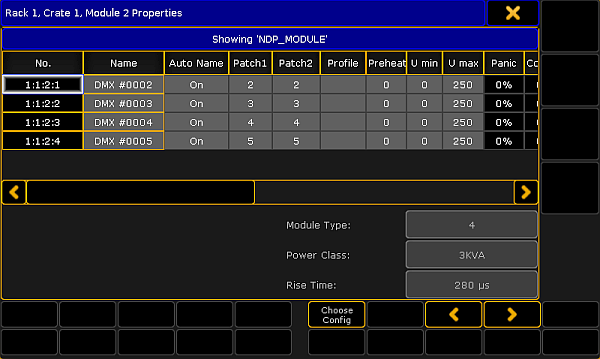
Edit a module
- To select a type of configuration, tap Choose Config and the pop-up Choose Configuration opens.
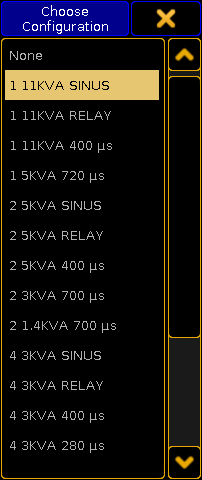
Select configuration
-Tap to choose a type.
-The configuration is now applied and can be edited.
Hint
You can edit columns in the pop-up Module Properties. For more information on the single columns see Views – Dimmer View.
- To edit the columns, tap and hold or press Edit and tap a cell of the corresponding column. Or select the cell and press the screen encoder.
-Depending on which column is being edited, either the calculatoropens, On is displayed, or the cell is empty. - To select the next or the previous module, tap
 or
 .
The module is now edited.
Source: key_ost_edit_module.html (grandMA2 manual v3.9)