Timer Pool
Manage the stopwatch and the countdowns in the timer pool.
- Open the timer pool:
-Tap Pools in Create Basic Window. For more information on how to open a basic window see Manage windows.
-Tap Time and the timer pool opens.
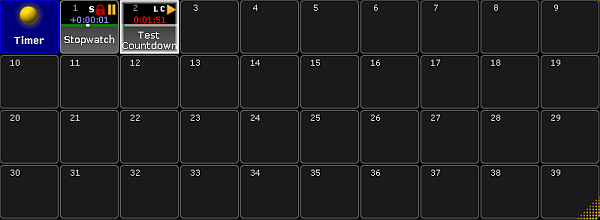
Open the timer pool
- Set a new timer, for example Countdown:
-Press Edit and then tap an empty cell in the timer pool.
-The pop-up Edit Timer opens.
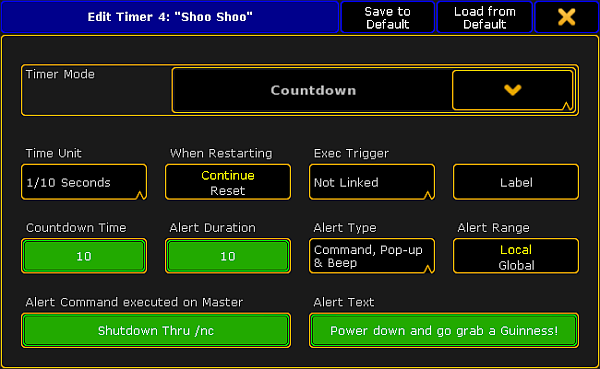
Edit the timer Countdown
- Now, select the timer mode:
-Tap the drop-down and tap Countdown. - Set the time unit:
-To set the time, tap Time Unit.
-The pop-up Select Time Unit opens.
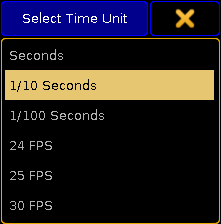
Select unit
-Tap to select the unit, for example 1 / 10 Seconds.
5. To continue the countdown after restart, tap When Restarting. The button toggles between Continue or Reset.
6. To set a link to an executor, tap Exec Trigger.
-The pop-up Select Exec Trigger opens.
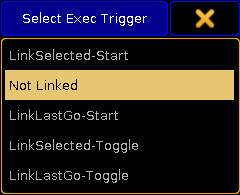
Link timer to an executor
-If you do not want to set a link to an executor, tap Not linked.
Exec Triggers
-
LinkSelected-Start and LinkSelected-Toggle are linked to the executors you have selected.
-If an executor is linked as LinkSelected-Start, the commands GO, GOTO, and TOP start the timer.
-If an executor is linked as LinkSelected-Toggle, the timer toggles between start and pause. -
LinkLastGo-Start and LinkLastGo-Toggle are linked to all executors, also the ones you have selected.
-If the link is set as LinkLastGo-Start, the commands GO, GOTO, and TOP start the timer on all executors.
-If the link is set as LinkLastGo-Toggle, the timer toggles between start and pause on all executors.
- Label the timer you have set:
- -Tap Label and an editor opens.
-Type the name of the timer and press Please. - Set countdown time and alert duration:
-Tap the green button below Countdown Time and the calculator opens.
-Enter the time of the countdown.
-Tap the green button below Alert Duration and the calculator opens.
-Enter the duration of the alert. -
Now, select the type of the alert:
-Tap Alert Type and the pop-up Select Alert Type opens.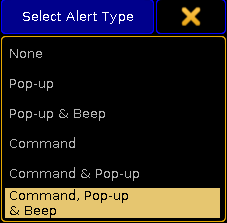
Setting the type of an alert
-Tap Command, Pop-up & Beep.
-The alert can now be set off via the command line simultaneously displaying a warning pop-up and an audio signal on the console. 11. Set the range of the alert:
-To toggle the range of the alert to Local, tap Alert Range.
-The alert only sets off on the console currently in use. 12. Type the command that is to be executed in the session master:
-Tap the green button below Alert Command executed on Master and an editor opens.
-Enter the command. 13. Enter the message that is to be displayed in the warning pop-up as soon as the alert sets off.
-Tap the green button below Alert Text.
-An editor opens.
-Enter the message of the pop-up. 14. The countdown is now set.
Hint
The current time of the timer can be assigned as the timing of a cue. Use the following syntax "Assign fade $timer1 cue 1 please" or Assign Time TimerPoolObject Cue 1 Please.
Hint
You can play back a stopwatch or a countdown saved in the timer pool in the Clock. For more information see Other System Tools - Clock.
Source: key_timers_timer_pool.html (grandMA2 manual v3.9)