Edit a Channel or a Fixture
Contrary to editing in live patching where you can edit entire fixture types, here it is possible to edit single objects only.
- Channels and / or fixtures are patched.
Patch channels and fixtures in Setup – Patch & Fixture Schedule.
For more information on how to patch channels and fixtures see Adding fixtures to your show.
To edit a fixture or a channel:
- Tap and hold name or ID number of the fixture or channel you would like to edit.
-or- - Press Edit and tap a fixture or a channel in the corresponding sheet.
-or- - Press Edit + Fixture + number of the fixture or channel to be edited + Please.
The edit pop-up opens.
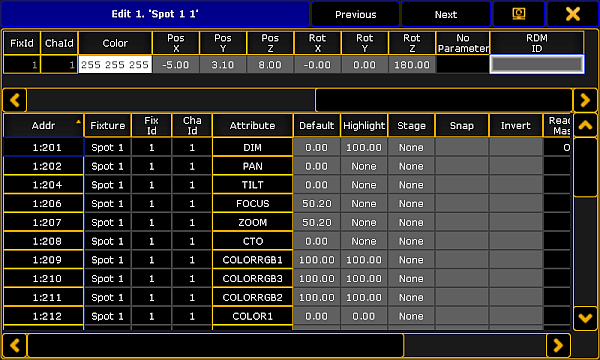
Edit Pop-up
- The upper spreadsheet in the pop-updisplays the modules of a fixture.
- The lower spreadsheet in the pop-updisplays the attributes of these modules.
Important
It is possible to edit all fields marked in gray. For detailed information see live patching.
Hint
To jump between fixtures or channels, tap either Previous or Next in the title of the edit pop-up.
Hint
If a fixture is linked to an RDM address, RDM ID will be displayed in the header of the upper spreadsheet.
Furthermore, it is possible to edit the order within the column in the pop-up. To change the order, tap and hold the title of the column and pull it up or down.
To close the edit pop-up, tap  in the upper right corner.
Source: key_of_edit_channel_or_fixture.html (grandMA2 manual v3.9)