Auto Create Presets
Explained in (2)
- Working practice: Organising groups and presets
- Working practice: Building and changing a show
It is possible to auto create a complete set of presets at once.
Important
If a fixture type does not contain channel sets or a preset reference, it is not possible to auto create presets.
To auto create presets:
- Press Setup.
- Tap Auto Create.
- The dialog Auto Create opens.
- Tap Preset.
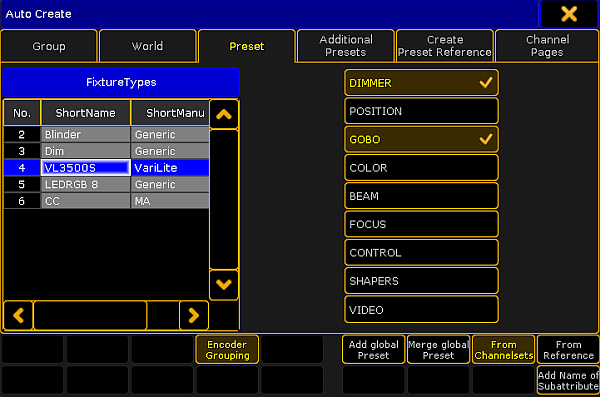
Menu auto create preset
- Choose a fixture type in the table FixtureTypes.
- Then, tap the preset type you would like to auto create a preset for.
Important
Auto-created presets are always global since they are generated in fixture types.
- To link attributes with the same term and of the same preset type, tap Encoder Grouping.
Thereby, only one attribute is really physically visible on the stage. - To create presets for single fixture types, tap Add global Preset.
- To merge presets for several fixture types, tap Merge global Preset.
- To determine that presets come from channel sets of a fixture type, tap From Channelsets.
- To determine that presets refer to fixture types that were previously stored, tap From Reference. For more information see Create preset reference.
- To add the name of a subattribute to the name of a channel set, tap Add Name of Subattribute.
- To close the menu, tap
 in the upper right corner of the window.
Source: key_presets_auto_create.html (grandMA2 manual v3.9)