Update Presets
Explained in (4)
- Working practice: Building and changing a show
- Explanation: Store and update
- How-to: Adapt a show to a new venue
- How-to: Make one colour preset work across fixture types
It is possible to update the presets which you have altered.
To do so:
- Tap the preset you would like to update once.
- The fixtures are now selected.
- Tap the same preset once again.
- The fixtures are now actively in the programmer.
- Change the value of this preset.
- Then, press Update.
- The pop-up Update opens.
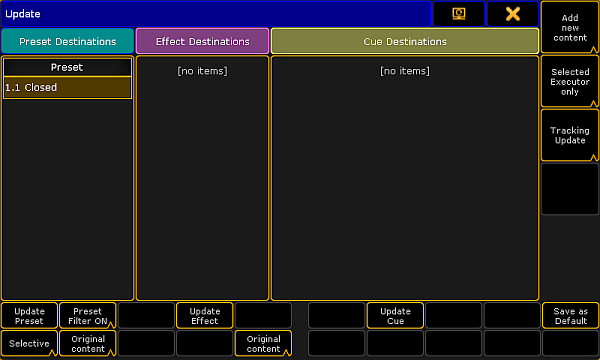
Update preset
- To disable the filter, tap Preset Filter ON. The button toggles to Preset Filter OFF.
- To choose the update option of the preset type, tap Selective. The button toggles between Selective, Global, Universal and Preset Type Default.
- The button Original content toggles to Add new content.
-To update existing values by the new values, tap Original content.
-To add additional data to the preset, along with existing values, tap Add new content. - If you have adjusted the settings to your needs, tap Update Preset.
- The preset has now been updated.
Hint
For more information on filter, selective, global, universal and default see Create presets.
Source: key_presets_update.html (grandMA2 manual v3.9)